Severity and reasons
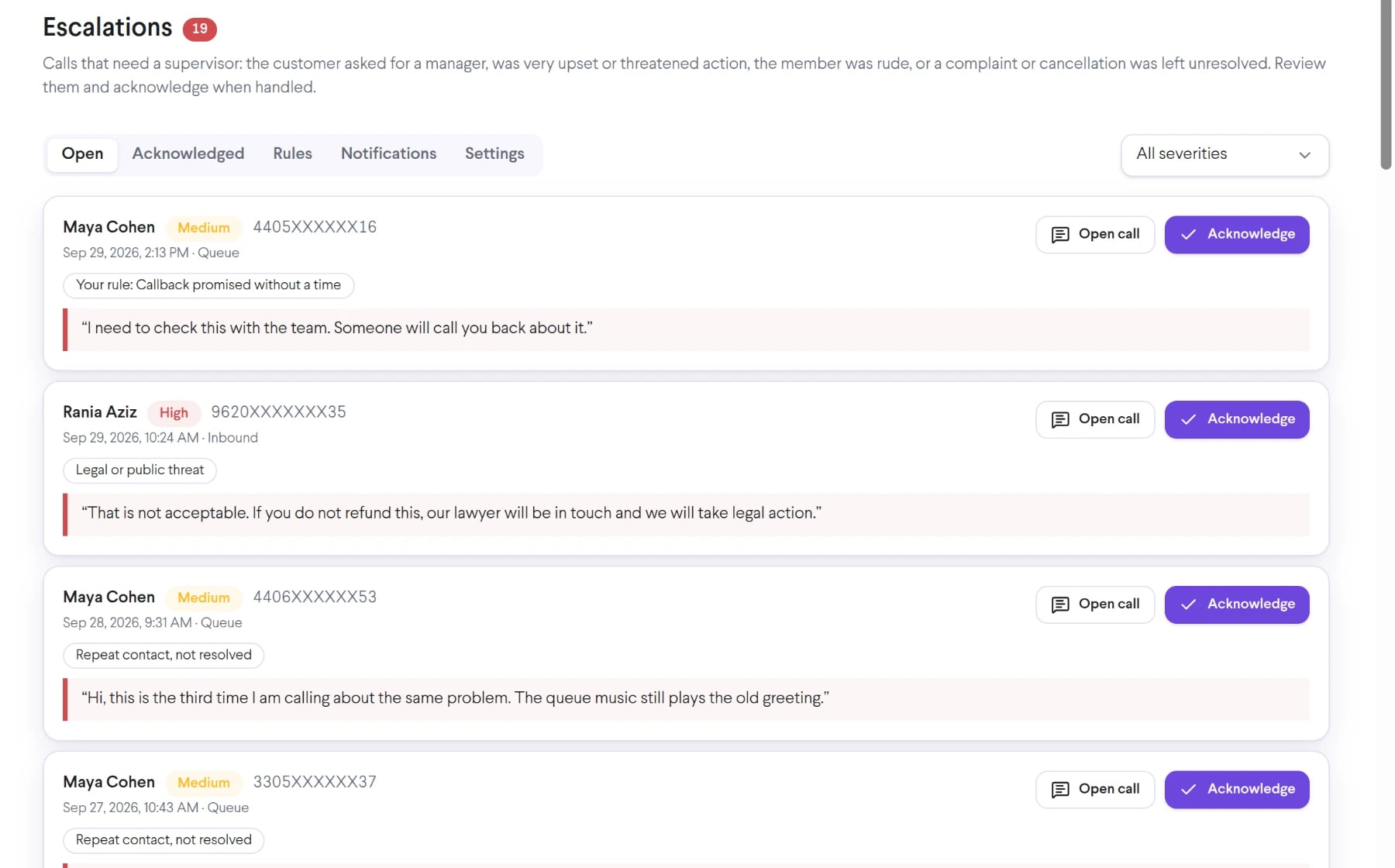
Each escalated call shows a High, Medium or Low severity and reasons such as Asked for a manager, Legal or public threat, or Complaint not resolved.
Transcribed calls are checked for moments that need attention, flagged High, Medium or Low, and listed for supervisors to review and acknowledge.
Bring ai escalations into the same connected experience as your business calls, customer conversations, and team collaboration.
Each escalated call shows a High, Medium or Low severity and reasons such as Asked for a manager, Legal or public threat, or Complaint not resolved.
Open the call and the transcript scrolls to the escalation line, highlighted, so a supervisor sees what happened without replaying the recording.
Add up to 10 active rules in your own words, such as a customer asking for a refund, check them with AI and test them on your recent calls before activating.
See how ai escalations moves from setup to everyday use inside TalkChief.
Switch escalation detection on for the company or per team under Insights > Escalations > Settings. It applies to calls that start after you turn it on.
Filter the Open tab by severity, open the call, and acknowledge it with an optional note so the team sees who handled it.
Each admin or supervisor picks email alerts per team and a minimum severity, and teams can post escalations to a CoWork channel.
Explore related capabilities that bring calling, customer service, and teamwork together.
Track customer sentiment, resolution, escalations and why customers call, with team and member scorecards and charts that explain themselves.
Explore AI Insights Dashboard →AnalyticsDeep Insights connects what customers talk about across calls: reasons, issues and products, outcomes, competitor mentions with churn risk and repeat callers.
Explore Deep Insights Dashboard →Cowork + AIOrganize TalkChief Cowork conversations in channels, threads, direct messages, and spaces with presence and business calling close to the team workflow.
Explore Team Chat and Spaces →TalkChief CoworkConnect channels, direct messages, presence, conferencing, calling, and AI-assisted follow-up.
Explore →AI transcriptionExplore multilingual transcription, speaker diarization, and API-ready workflows.
Explore →